Dynamics 365
Introduction
In this document, we provide a step-by-step guide on how users can integrate Dynamics 365 in their Wave account to sync contacts across their Dynamics 365 ecosystem.
Intergrating Dynamics 365 in Your Wave Account
-
Login (opens in a new tab) to your Wave user account
-
Go to Settings, then click on Integrations.
-
Click on the 'Connect' button.

-
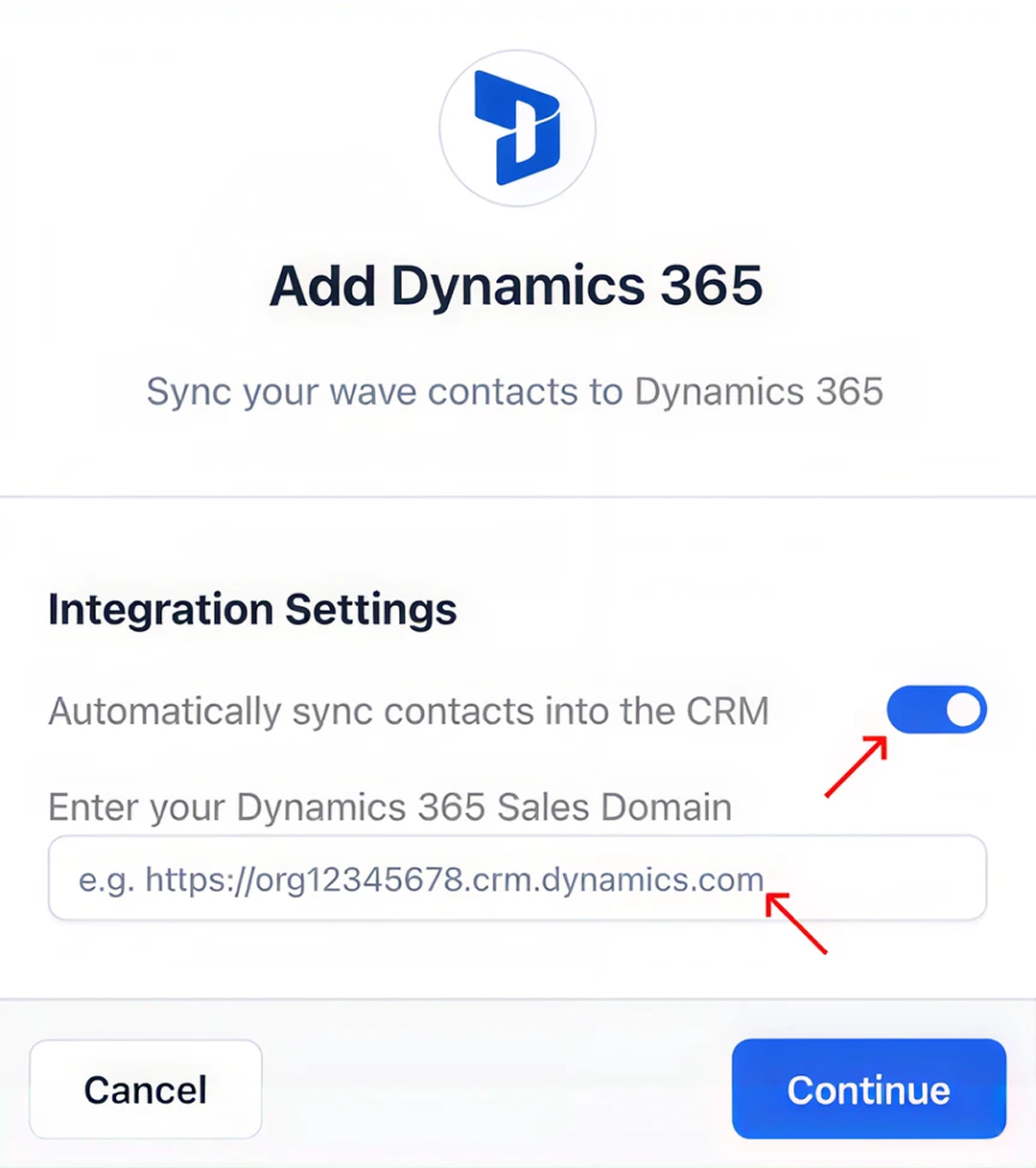
A pop-up will open, allowing you to turn on contact auto sync between your Wave and Dynamics 365 accounts. We recommend leaving this on. Press 'Continue.' Additionally, provide your Dynamics 365 Sales Domain in the space provided. A new tab will open asking you to authenticate your Dynamics 365 account.
-
Provide your Microsoft Dynamics 365 credentials in the fields provided. Press 'Log In.'
Note: The account you authenticate must be a Dynamics 365 administrative account to ensure your integration works properly.
-
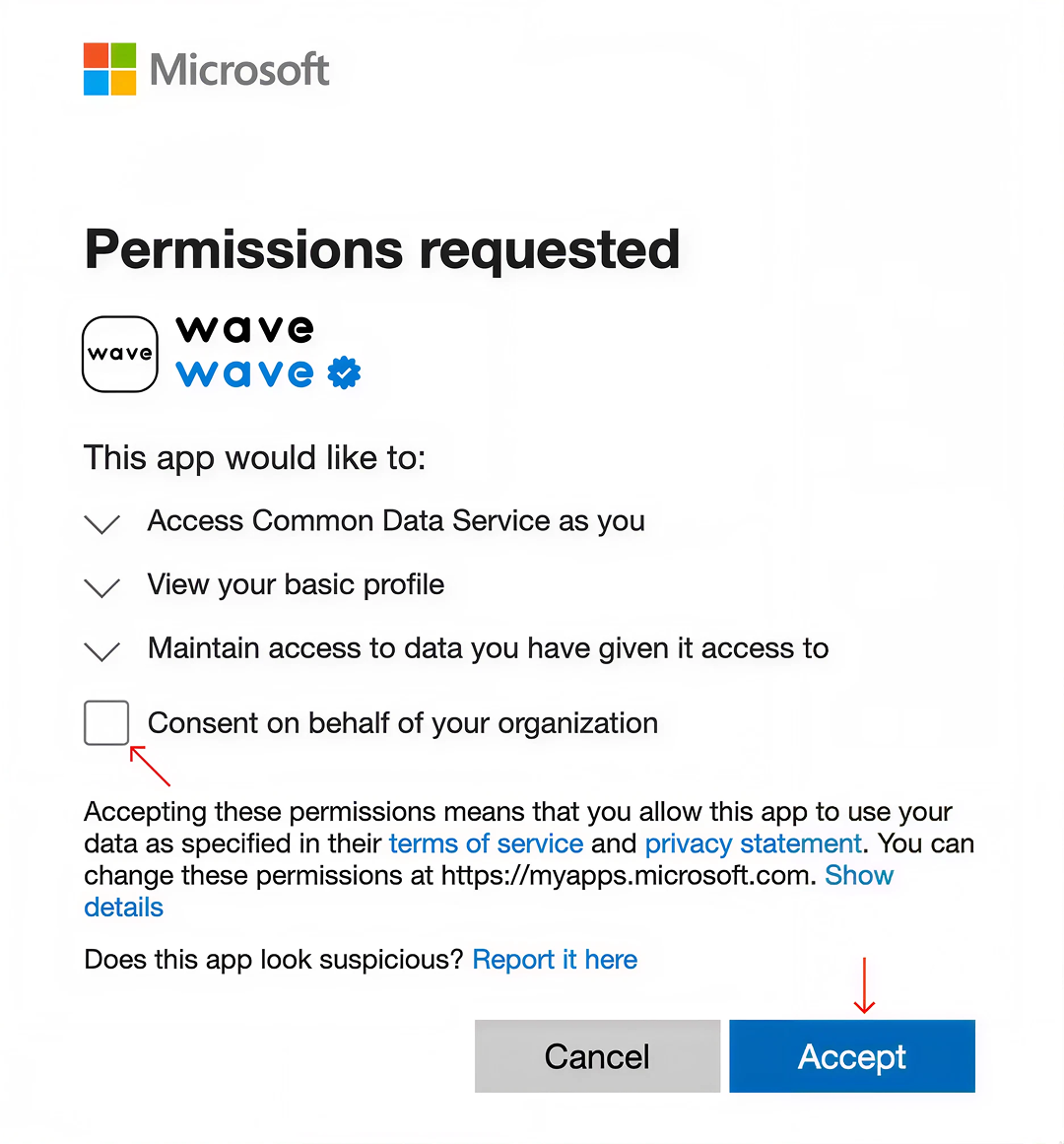
After reviewing the permission prompt, check the consent box then press 'Accept' to grant Dynamics 365 access to your Wave account data. You will now be re-directed to your Wave account.
-
Verify a successful integration of Dynamics 365 by spotting the ‘Disconnect’ button across Dynamics 365.

Note: Your Wave contacts will automatically sync as 'Contacts' in your Dynamics 365 account.
Congratulations 🎉, you have successfully integrated Dynamics 365 in your Wave account.
Contact Owner Assignment:
Wave Connect automatically assigns Lead/Contact owner based on the creator's email. If the email does not match with any Dynamics 365 user, the default value specified in your Dynamics 365 account applies.